What Internet Speed Do You Really Need for IPTV? 2026 Bandwidth & Stability Guide
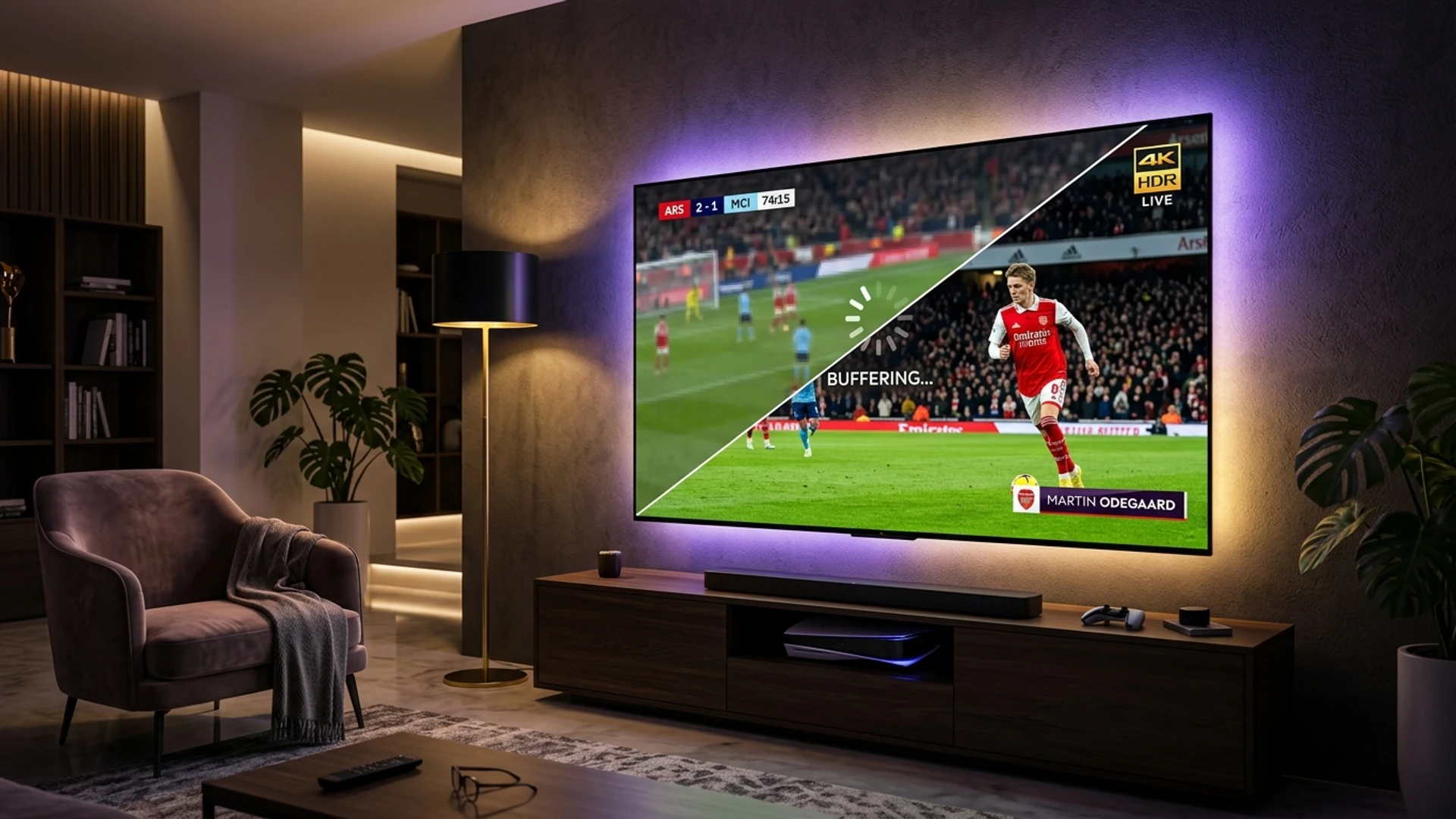
Few digital experiences are as exasperating as settling down to watch a live championship football match or a 4K movie, only to be confronted with a spinning loading wheel, stuttering video frames, or a sudden drop in picture resolution.
When streaming television stutters or freezes, the immediate assumption made by most viewers is that their internet connection is simply too slow. Consumers routinely rush to upgrade their home broadband package—moving from 100 Mbps to 300 Mbps, or from 500 Mbps to Gigabit fiber—only to discover, to their profound frustration, that their IPTV streams continue to buffer just as frequently as before.
Why does this happen? The reality is that raw advertised download speed is only one piece of the digital streaming puzzle.
While having sufficient bandwidth throughput is undeniably essential, live television delivered over Internet Protocol (IP) relies far more heavily on connection stability, packet latency, minimal jitter, and zero packet loss than on massive aggregate gigabit pipes. A customer with a modest, rock-solid 30 Mbps Ethernet connection will enjoy a far superior, buffer-free IPTV experience compared to a customer with a 500 Mbps Wi-Fi connection that suffers from radio frequency interference and packet collisions.
This comprehensive technical guide breaks down the true internet requirements for IPTV in 2026. You will learn the exact Mbps thresholds required for every resolution tier (from Standard Definition to 4K Ultra HD), understand the critical difference between speed and stability, calculate your household's total concurrent bandwidth needs, monitor monthly data consumption against ISP caps, and optimize your home network hardware to guarantee flawless streaming without spending an extra dime on your ISP bill.
The IPTV Speed Spectrum: Requirements by Resolution Tier
To understand how much bandwidth you actually need, you must look at how digital video data is compressed, transmitted, and decoded across different visual tiers.
Unlike pre-recorded streaming platforms (like Netflix or Amazon Prime Video) that can pre-load several minutes of video cache ahead of time, live linear IPTV streams are delivered in real time. Your network must maintain continuous, unbroken data throughput every single second.
[IPTV Bandwidth & Resolution Hierarchy]
4K Ultra HD (2160p @ 60fps) ────> [Minimum: 25 Mbps] ──> [Recommended: 35–50 Mbps]
Full HD (1080p @ 60fps Sports) ─> [Minimum: 10 Mbps] ──> [Recommended: 15–20 Mbps]
Standard HD (720p @ 30fps) ─────> [Minimum: 5 Mbps]  ──> [Recommended: 8–10 Mbps]
Standard Definition (480p SD) ──> [Minimum: 2.5 Mbps]──> [Recommended: 4–5 Mbps]
The table below outlines the realistic bandwidth requirements for a single active IPTV stream in 2026:
| Video Resolution Tier | Pixel Dimensions | Typical Frame Rate | Minimum Required Speed | Recommended Speed (With Headroom) | Codec Utilized |
|---|---|---|---|---|---|
| Standard Definition (SD) | 720 × 480 | 30 FPS | 2.5 Mbps | 5.0 Mbps | H.264 / MPEG-2 |
| Standard High Definition (HD) | 1280 × 720 | 30–50 FPS | 5.0 Mbps | 8.0–10.0 Mbps | H.264 / H.265 |
| Full High Definition (FHD) | 1920 × 1080 | 30 FPS | 8.0 Mbps | 12.0–15.0 Mbps | H.264 / H.265 |
| High-Framerate Sports (FHD) | 1920 × 1080 | 60 FPS | 12.0 Mbps | 18.0–22.0 Mbps | H.265 (HEVC) |
| 4K Ultra High Definition (UHD) | 3840 × 2160 | 60 FPS | 25.0 Mbps | 35.0–50.0 Mbps | H.265 / AV1 |
Why "Headroom" Matters More Than the Minimum
Notice the crucial difference between Minimum Required Speed and Recommended Speed.
If a 1080p 60 FPS sports feed requires 12 Mbps of continuous throughput, and your internet connection delivers exactly 12 Mbps, your stream is operating on a razor-thin margin with zero tolerance for error. The moment another smartphone on your home network receives a WhatsApp photo, an operating system runs a background security check, or a Wi-Fi frequency fluctuates, your throughput dips to 9 Mbps. The player's buffer empties in two seconds, and your screen freezes.
Maintaining recommended headroom (providing 50% to 100% additional bandwidth capacity above the stream's raw bitrate) ensures that momentary household micro-spikes never starve your media player.
Speed vs. Stability: The 4 Hidden Metrics That Dictate Playback
Why can a 500 Mbps fiber connection still suffer from endless IPTV buffering? Because standard internet marketing measures bandwidth capacity, whereas live video streaming depends entirely on packet transmission health.
To diagnose streaming issues accurately, you must understand the four key metrics of network health:
                 THE 4 PILLARS OF STREAMING HEALTH
┌──────────────────────────────┬──────────────────────────────┐
│ 1. BANDWIDTH (Throughput)    │ 2. LATENCY (Ping)            │
│ The width of your pipeline   │ The speed of round-trip data │
│ (Target: 30+ Mbps dedicated) │ (Target: < 40 ms)            │
├──────────────────────────────┼──────────────────────────────┤
│ 3. JITTER (Packet Variance)  │ 4. PACKET LOSS (Integrity)   │
│ Consistency of packet timing │ Destroyed or dropped packets │
│ (Target: < 3–5 ms)           │ (Target: Exactly 0.0%)       │
└──────────────────────────────┴──────────────────────────────┘
1. Bandwidth Throughput (The Pipe Width)
Think of bandwidth as the physical diameter of a water pipe. A wider pipe allows more gallons of water (megabits of data) to flow through each second. If your stream requires 15 gallons per second and your pipe only allows 10, water spills and video stalls. However, once your pipe is wide enough to handle the stream (e.g., 35 Mbps for 4K), making the pipe ten times wider (1,000 Mbps) will not make the picture ten times clearer.
2. Latency / Ping (The Transit Time)
Latency is the time (measured in milliseconds) it takes for a data packet to travel from your streaming device to the provider's broadcast server and back.
- Under 30 ms: Exceptional. Instant channel switching (zapping) and seamless playback.
- 30 ms to 60 ms: Good. Standard residential performance.
- Above 100 ms: Problematic. Slow stream handshakes, delayed audio streams, and frequent buffering.
3. Jitter (The Consistency Metric)
Jitter is the measurement of variance in packet arrival times. If Packet A takes 20 ms to arrive, Packet B takes 85 ms, and Packet C takes 15 ms, your connection has high jitter. High jitter wreaks havoc on live streaming buffers: the media player cannot predict when incoming video frames will arrive, causing the buffer cache to alternately overflow and starve. For smooth IPTV streaming, jitter must remain below 5 ms.
4. Packet Loss (The Stream Killer)
Packet loss occurs when digital data packets traversing the internet fail to reach their destination, typically due to network congestion, faulty cabling, or weak Wi-Fi signals. In web browsing, lost packets are simply re-sent unnoticed. In live IPTV streaming, a lost video packet means an entire video frame cannot be reconstructed. Packet loss exceeding 0.5% causes severe visual pixelation, green digital artifacting, audio pops, and complete playback stalls.
Experience Optimized Bandwidth with Wizard TV
Our advanced H.265/HEVC stream encoding delivers pristine 4K video and 60 FPS sports at lower bitrates, ensuring smooth, buffer-free playback even on modest internet connections.
Check Wizard TV PlansCompression Codecs and Their Direct Impact on Bandwidth
The amount of internet speed an IPTV channel requires is directly dictated by the digital compression codec used by the broadcast server.
Bandwidth Required to Stream 1080p Full HD at 60 FPS:
Legacy H.264 (AVC) Codec  ───────> [12 to 16 Mbps] (High bandwidth, heavy data usage)
Modern H.265 (HEVC) Codec ───────> [6 to 8 Mbps]   (50% bandwidth savings, better HDR)
Next-Gen AV1 Codec ──────────────> [4 to 6 Mbps]   (Ultra-efficient, lowest data usage)
1. Legacy H.264 / AVC
- Characteristics: The foundational codec of digital web video for the past fifteen years. Highly compatible with ancient televisions and legacy set-top boxes.
- Bandwidth Penalty: Inefficient by 2026 standards. To transmit high-action 1080p 60fps sports without compression macro-blocking, an H.264 stream demands 12 to 16 Mbps.
- 4K Limitations: Unsuited for 4K streaming; an uncompressed H.264 4K stream requires upwards of 35–45 Mbps.
2. Modern H.265 / HEVC (High Efficiency Video Coding)
- Characteristics: The current industry standard for premium IPTV providers like Wizard TV.
- Bandwidth Efficiency: Delivers roughly 50% greater data compression at identical or superior visual quality compared to H.264. A pristine 1080p 60fps sports feed encoded in HEVC streams smoothly at just 6 to 8 Mbps.
- HDR & Color: Natively supports 10-bit color spaces, enabling High Dynamic Range (HDR10 and Dolby Vision) with deep contrast and vibrant colors.
3. Next-Generation AV1
- Characteristics: The cutting-edge open-source codec developed by Apple, Google, Microsoft, and Netflix.
- Bandwidth Efficiency: Up to 30% more efficient than HEVC, allowing genuine Full HD streaming on connections as low as 4 to 5 Mbps. Supported by modern streaming devices like the Fire TV Stick 4K Max (2nd Gen) and Apple TV 4K.
Household Bandwidth Calculator: Multi-Device Streaming Scenarios
When evaluating your home broadband requirements, you cannot look at your television in isolation. You must calculate the total cumulative data draw of all simultaneously active devices across your household.
Total Household Bandwidth Formula:
[Active IPTV Streams × Bitrate] + [Other Household Activities] + [25% Safety Headroom]
Real-World Household Streaming Scenarios:
Scenario A: Single Viewer / Couple Household
- Living Room: 1 Smart TV streaming 1080p 60fps sports (15 Mbps).
- Background Devices: 2 smartphones browsing social media / light web (5 Mbps).
- Total Required Throughput: 20 Mbps.
- Recommended Minimum ISP Plan: 30 to 50 Mbps.
Scenario B: Modern Family Household (3–4 People)
- Living Room: 1 TV streaming 4K Ultra HD movie (35 Mbps).
- Bedroom 1: 1 Firestick streaming 1080p entertainment (12 Mbps).
- Bedroom 2: 1 Teenager streaming YouTube HD / gaming (10 Mbps).
- Home Office: 1 Laptop on video conference call (5 Mbps).
- Total Concurrent Draw: 62 Mbps.
- Recommended Minimum ISP Plan: 100 to 150 Mbps.
Scenario C: Power User / Multi-Room Sports Fanatic
- Main Home Cinema: 1 NVIDIA Shield running 4-Screen Multi-View sports (4 × 12 Mbps = 48 Mbps).
- Secondary TV: 1 4K VOD cinema stream (35 Mbps).
- Smart Home: 4 Cloud security cameras uploading video (15 Mbps).
- Background: Active PC console download / cloud backup (25 Mbps).
- Total Concurrent Draw: 123 Mbps.
- Recommended Minimum ISP Plan: 200 to 300+ Mbps.
Monthly Data Consumption and ISP Data Caps
In many countries and regions, Internet Service Providers enforce monthly data caps (typically 1.0 TB to 1.2 TB per month), charging punitive overage fees if your household exceeds your allowance.
Because IPTV streams continuously in real time, understanding your hourly data consumption is vital for avoiding unexpected billing surprises.
Hourly Data Consumption by Resolution Tier:
SD (480p)        ──> 0.8 GB to 1.2 GB per hour
HD (720p)        ──> 1.5 GB to 2.2 GB per hour
Full HD (1080p)  ──> 3.0 GB to 4.5 GB per hour (High-framerate 60fps sports)
4K Ultra HD      ──> 7.0 GB to 12.0 GB per hour
Monthly Usage Projections:
| Daily Viewing Hours | Primary Resolution | Hourly Data Consumption | Estimated Monthly Data Usage |
|---|---|---|---|
| 3 Hours / Day | 1080p Full HD (60fps) | ~3.5 GB / hr | ~315 GB / month (Well within standard caps) |
| 6 Hours / Day | 1080p Full HD (60fps) | ~3.5 GB / hr | ~630 GB / month (Safe on 1.0 TB cap) |
| 4 Hours / Day | 4K Ultra HD (2160p) | ~8.5 GB / hr | ~1,020 GB / month (Approaching 1.0 TB limit) |
| 8 Hours / Day (Multi-TV) | Mixed HD & 4K | ~12.0 GB / hr | ~2,880 GB / month (Requires Unlimited Data Plan) |
Pro-Tip for Capped Connections: If your household is bound by a strict 1.0 TB monthly data cap, prioritize streaming everyday studio news, talk shows, and background television in 720p or standard 1080p, reserving 4K streaming specifically for marquee sporting events and feature films. If you are a heavy multi-screen viewer, contacting your ISP to add an Unlimited Data Add-on (typically $10–$30/mo) provides complete peace of mind.
Connection Technology Shootout: Wi-Fi vs. Ethernet vs. MoCA vs. Powerline
How data travels from your home router across your living room to your streaming device is just as important as how it arrives at your house from the street.
┌──────────────────┬──────────────────┬──────────────────┬──────────────────┐
│   Cat6 Ethernet  │     MoCA 2.5     │    Wi-Fi 6 (5G)  │  Powerline AV2   │
├──────────────────┼──────────────────┼──────────────────┼──────────────────┤
│ Stability: 100%  │ Stability: 98%   │ Stability: 85%   │ Stability: 75%   │
│ Latency: < 1ms   │ Latency: 2–3ms   │ Latency: 5–15ms  │ Latency: 4–10ms  │
│ Packet Loss: 0%  │ Packet Loss: 0%  │ Packet Loss: Var.│ Packet Loss: Low │
│ Interference: NO │ Interference: NO │ Interference: YES│ Interf.: Motors  │
└──────────────────┴──────────────────┴──────────────────┴──────────────────┘
1. Direct Cat6 Ethernet (The Undisputed King)
- Performance: 100% immune to radio frequency interference, zero packet loss, sub-millisecond local latency, and guaranteed full-line throughput.
- Recommendation: Always connect your primary living room streaming hardware (NVIDIA Shield, Apple TV, Smart TV, or Firestick Ethernet adapter) directly via physical Ethernet cable wherever humanly possible.
2. MoCA 2.5 (Multimedia over Coax)
- Performance: If running Ethernet cables across walls or floors is impossible, MoCA adapters utilize your home's existing coaxial cable outlets (the screw-on cable TV ports found in most rooms).
- Capabilities: MoCA 2.5 delivers up to 2.5 Gbps of throughput with near-zero latency and zero wireless degradation, effectively turning every coaxial wall plate into a high-speed Ethernet jack.
3. Wi-Fi 6 on the 5 GHz Spectrum
- Performance: If wireless is your only practical path, ensure you connect strictly to the 5 GHz frequency band using modern Wi-Fi 6 (802.11ax) or Wi-Fi 6E hardware.
- Best Practice: Keep your streaming stick away from the rear metal chassis of your TV using an HDMI extension dongle, and maintain direct line-of-sight to your wireless router or mesh satellite node.
4. Powerline Network Adapters (HomePlug AV2)
- Performance: Powerline adapters transmit network data through your home's copper electrical wiring between wall outlets.
- Caveat: Highly dependent on the age and layout of your home electrical circuits. Heavy electrical appliances (refrigerators, air conditioning compressors, vacuum cleaners) can induce momentary line noise that causes temporary stream stutter.
Step-by-Step On-Device Speed Testing Routine
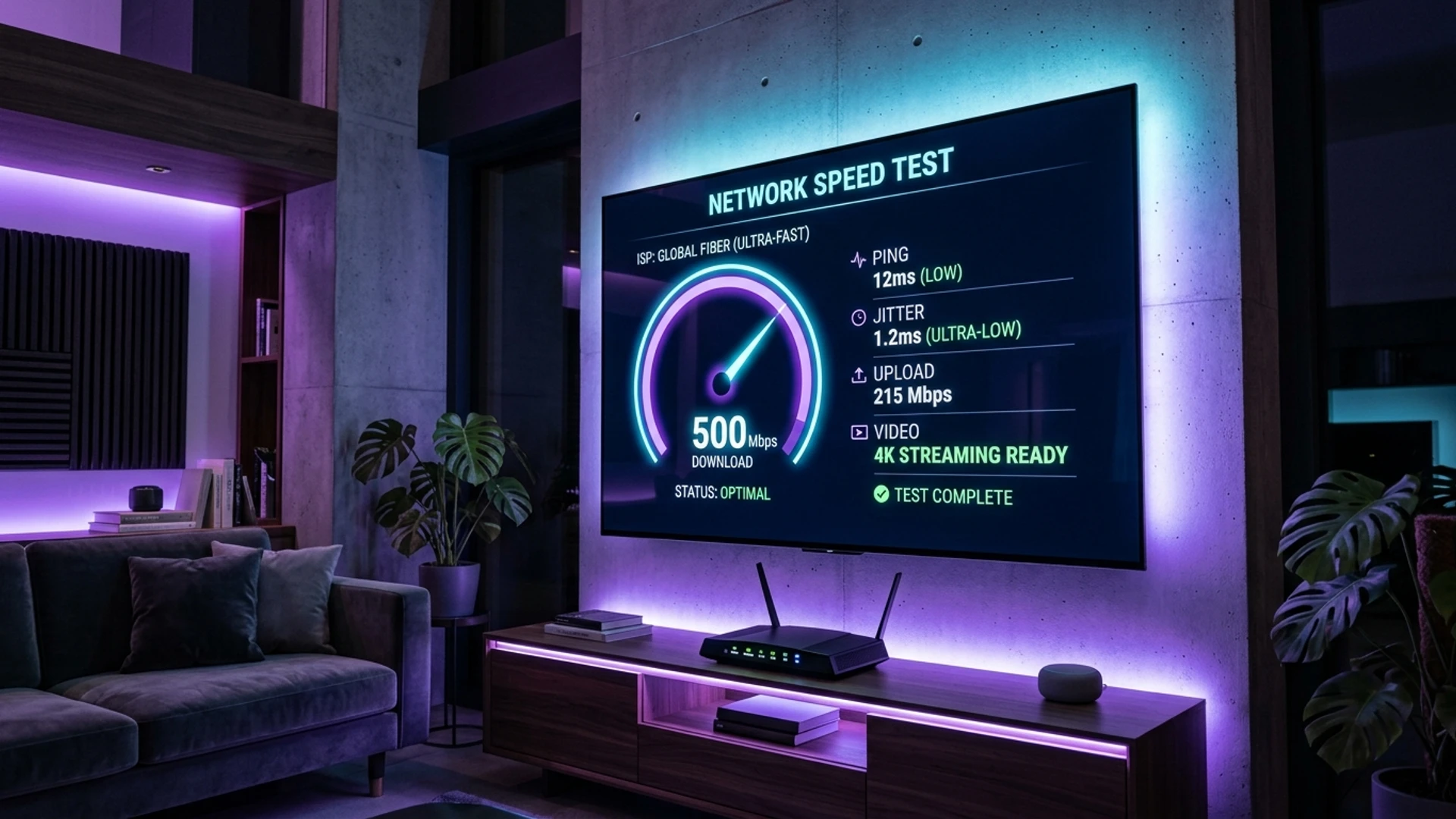
To determine whether your current setup is ready for flawless IPTV streaming, you must measure your network directly on your television hardware—not on an iPhone or laptop sitting next to the couch.
[Device-Level Network Diagnostic Protocol]
Step 1: Download "Analiti" or open Fast.com via device browser.
Step 2: Run test at 10:00 AM (Baseline off-peak throughput).
Step 3: Run test at 8:30 PM (Peak evening neighborhood ISP load).
Step 4: Audit three specific numbers: Speed (>25M), Latency (<40ms), Jitter (<5ms).
- Install an On-Device Analytical Tool: On Fire TV or Android TV, download the free Analiti - Speed Test Wi-Fi Analyzer app from the app store. On Apple TV or Smart TVs without dedicated speed apps, open the web browser and navigate directly to Fast.com (click "Show more info" to reveal latency and unloaded/loaded buffer metrics).
- Execute Three Sequential Diagnostic Runs: Perform three tests consecutively: once in the morning, once in the late afternoon, and once during prime-time evening hours (between 8:00 PM and 10:30 PM).
- Analyze the Core Metrics:
- Download Speed: Must comfortably exceed 15 Mbps for 1080p 60fps sports, or 35 Mbps for 4K.
- Unloaded vs. Loaded Latency: If your latency is 20 ms when the connection is idle (unloaded), but shoots up to 250 ms during active data transfer (loaded latency), your router suffers from severe bufferbloat, which will cause stream freezing whenever other household members use the internet.
- Jitter: Confirm that jitter remains strictly under 5 ms.
Broadband Connection Shootout: Fiber vs. Cable vs. 5G Home Internet vs. Starlink
The physical medium delivering internet to your home significantly impacts latency stability and real-time streaming consistency.
Connection Type Benchmark for Live Television:
Fiber Optic (FTTH) ────> Grade: A+ (Symmetrical speeds, sub-10ms ping, zero jitter)
Coaxial Cable (DOCSIS)─> Grade: B+ (High download speeds, variable evening latency)
5G Home Internet ──────> Grade: C+ (Convenient, but susceptible to cellular tower load)
Starlink Satellite ────> Grade: B- (Impressive for rural areas; variable ping in storms)
DSL (Copper Telephone) ─> Grade: D  (Insufficient bandwidth headroom for modern 4K)
1. Pure Fiber Optic (FTTH - Fiber to the Home)
- Architecture: 100% optical light signals delivered directly into your residence without legacy copper conversion.
- Streaming Verdict: The gold standard for IPTV. Fiber delivers symmetrical download and upload speeds, ultra-low latency (typically 5 to 15 ms), and near-zero jitter. Even during peak neighborhood hours, fiber backbones experience virtually zero transit degradation.
2. Coaxial Cable Broadband (DOCSIS 3.1)
- Architecture: Optical fiber brings data to a neighborhood node, with legacy coaxial copper cables connecting the node to individual homes.
- Streaming Verdict: Highly capable of delivering fast download speeds (often 300 to 1,000 Mbps). However, because coaxial cable architecture is shared across neighborhood loops, peak evening hours can introduce micro-latency spikes and bufferbloat if your ISP's local node is oversubscribed.
3. 5G Home Internet (Fixed Wireless Access)
- Architecture: Connects your home router wirelessly to nearby cellular telecom towers (T-Mobile, Verizon, EE, Three).
- Streaming Verdict: Highly convenient where physical cabling is unavailable. However, 5G wireless performance fluctuates based on cellular tower congestion, weather conditions, and physical distance from the cell site. Jitter is significantly higher than fiber (often 15 to 45 ms), which can trigger adaptive resolution downscaling on sensitive IPTV players.
4. Starlink Satellite Internet
- Architecture: Low-Earth Orbit (LEO) satellite constellation providing high-speed internet to rural and remote regions.
- Streaming Verdict: A revolutionary breakthrough for rural households lacking cable or fiber. Delivers 50 to 200 Mbps with reasonable latency (35 to 60 ms). However, heavy rain or dense snowstorms can cause brief micro-drops ("rain fade"), and satellite handoffs can induce momentary packet retries. Increasing your IPTV player's buffer cache to 8 to 12 seconds is essential for stable Starlink streaming.
Streaming IPTV on Mobile Networks and Travel Hotspots
Streaming live television while traveling, commuting, or vacationing requires specific bandwidth and data management strategies.
1. Optimizing for Cellular 4G LTE & 5G Connections
When connecting your smartphone, tablet, or laptop to mobile cellular networks:
- Enable Hardware Acceleration: Ensure your mobile player (such as IPTV Smarters or TiviMate Companion) has Hardware Decoding enabled to conserve device battery and prevent thermal throttling.
- Select Lower-Bitrate Profiles: If your provider offers multi-bitrate streams, select a 720p HD or standard 1080p profile rather than an uncompressed 60 FPS sports feed. This cuts data consumption by more than 50% without noticeable degradation on a 6-inch smartphone screen.
- Bypass Carrier Content Filters: Mobile network operators frequently enforce automated content filtering or traffic shaping on video streaming ports. Connecting to a fast WireGuard VPN ensures your cellular carrier cannot identify or throttle your media packets.
Advanced Router Tuning: Eliminating Bufferbloat with SQM
For power users who experience recurring buffering whenever another household member uploads files or downloads game updates, configuring Smart Queue Management (SQM) is the ultimate permanent solution.
Standard routers manage bandwidth using a "First-In, First-Out" (FIFO) buffer queue. When a computer downloads a massive file, the router's queue fills with hundreds of bulk data packets. When your IPTV player requests a time-sensitive live video packet, that packet is stuck waiting at the back of the queue, causing latency to spike by hundreds of milliseconds.
Standard Router Queue (Bufferbloat Freezing):
[Bulk File Download Packets] ──> [Bulk Packets] ──> [IPTV Packet Blocked at Tail!] ──> Stutter!

Smart Queue Management (SQM Active):
Queue 1: [IPTV Video Packets] ──> Instant Priority Transit (Zero Latency Spike)
Queue 2: [Bulk File Packets]  ──> Throttled Smoothly in Background
How to Implement SQM:
- Access your router settings and check if SQM, Cake, or FQ-CoDel is supported in the firmware.
- If your router manufacturer does not include SQM (common on basic ISP routers), consider upgrading to an aftermarket router running open-source firmware like OpenWrt or purchasing a dedicated router (such as an Asus router running Asuswrt-Merlin).
- Set your SQM download and upload limits to approximately 90% to 95% of your measured line speed. This prevents your internet modem from ever reaching 100% capacity, permanently eliminating bufferbloat and ensuring live television streams remain silky smooth regardless of household network activity.
7 Free Router Optimizations to Eliminate Buffering
Before calling your Internet Service Provider to pay for a more expensive broadband tier, implement these seven proven, cost-free network optimizations inside your home router:
- Split Dual-Band SSIDs: Log into your router's admin interface (usually
192.168.1.1). Disable "Smart Connect" or unified band steering, and create two distinct Wi-Fi networks: e.g., "HomeNetwork_2.4G" and "HomeNetwork_5G." Connect non-critical smart home bulbs and printers to 2.4 GHz, and reserve 5 GHz exclusively for your IPTV streaming hardware. - Enable Quality of Service (QoS) Bandwidth Prioritization: Assign highest packet priority to your streaming box's local IP or MAC address. This guarantees that background game downloads or file syncing can never steal bandwidth away from your active television stream.
- Activate Smart Queue Management (SQM): If your router supports SQM (such as FQ-CoDel or Cake algorithms), turn it on immediately. SQM is the ultimate cure for bufferbloat, ensuring that video stream packets are never delayed behind large bulk file transfers.
- Switch to High-Speed Public DNS Servers: Replace slow, monitored default ISP DNS resolvers with Cloudflare DNS (1.1.1.1 and 1.0.0.1) or Google DNS (8.8.8.8 and 8.8.4.4). Fast DNS lookups accelerate channel zapping and prevent ISP content-filtering delays.
- Manually Select Clean Wi-Fi Channels: Use a Wi-Fi analyzer tool to inspect neighboring networks. Set your 5 GHz Wi-Fi channel manually to an uncongested channel (such as 36, 44, or non-interfering DFS channels) rather than leaving channel selection on "Auto."
- Schedule Weekly Automated Router Reboots: Configure your router to automatically reboot every Sunday at 4:00 AM. Regular reboots flush memory fragmentation, reset DNS caches, and clear hung NAT routing tables.
- Optimize Media Player Buffer Settings: In your IPTV app (e.g., TiviMate), navigate to Settings > Playback > Buffer Size and increase the cache to Large (5 to 10 seconds). This simple setting change allows your player to effortlessly absorb minor Wi-Fi speed dips without freezing.
For step-by-step setup guides across specific devices, visit our Wizard TV Installation Tutorials.
Why Wizard TV Streams Flawlessly on Modest Internet Connections
At Wizard TV, we recognize that not every customer has access to expensive Gigabit fiber connections. That is why our entire broadcast delivery pipeline is engineered for maximum bandwidth efficiency and stream resilience:
- State-of-the-Art HEVC & AV1 Encoding: Our live streams and 4K VOD titles are encoded using advanced multi-pass H.265/HEVC compression, delivering razor-sharp 1080p 60 FPS sports at just 6 to 8 Mbps—allowing users with modest 25 Mbps connections to stream without buffering.
- Global Edge Caching Nodes: Stream data is delivered via distributed Content Delivery Network (CDN) edge clusters located across North America, Europe, the UK, and Asia, minimizing transit hops and reducing ping times.
- Anti-Freeze 10.0 Redundancy: Automated backend traffic management monitors packet delivery round-trips in real time, routing around congested ISP peering links before client buffers can empty.
- Adaptive Bitrate Profiles: Select channels feature multi-bitrate profiles, allowing your player to seamlessly adjust resolution during temporary network strain rather than freezing playback completely.
To experience buffer-free live television engineered for modern home networks, explore our plans on the Wizard TV Pricing page.
Ready for High-Speed Live Entertainment?
Get instant automated setup across all your devices. Enjoy 50,000+ live channels and 120,000+ VOD movies backed by global CDN edge servers and anti-freeze technology.
Start Streaming TodayFrequently Asked Questions
Conclusion
Determining the ideal internet speed for IPTV in 2026 requires understanding that video resolution, stream bitrate, and connection stability are intrinsically linked. While 15 to 20 Mbps easily powers high-framerate Full HD sports, stepping up to 4K Ultra HD requires a baseline of 25 Mbps, with 35 to 50+ Mbps providing real-world reliability.
Crucially, raw download speed is only one piece of the puzzle. Connection stability, low jitter, zero packet loss, and robust Wi-Fi or Ethernet delivery play equally vital roles in maintaining fluid, uninterrupted live television broadcasts. By testing speed directly on your playback hardware, upgrading to wired Ethernet connections, and optimizing your media player settings, you can unlock the full potential of your home streaming setup.
Ready to elevate your home entertainment with ultra-high-definition live channels, sports, and movies? Explore Wizard TV Pricing Plans today and experience buffer-free IPTV streaming built for modern home networks.