IPTV Quality Drops During Streaming: Ultimate Troubleshooting & Stabilization Guide (2026)
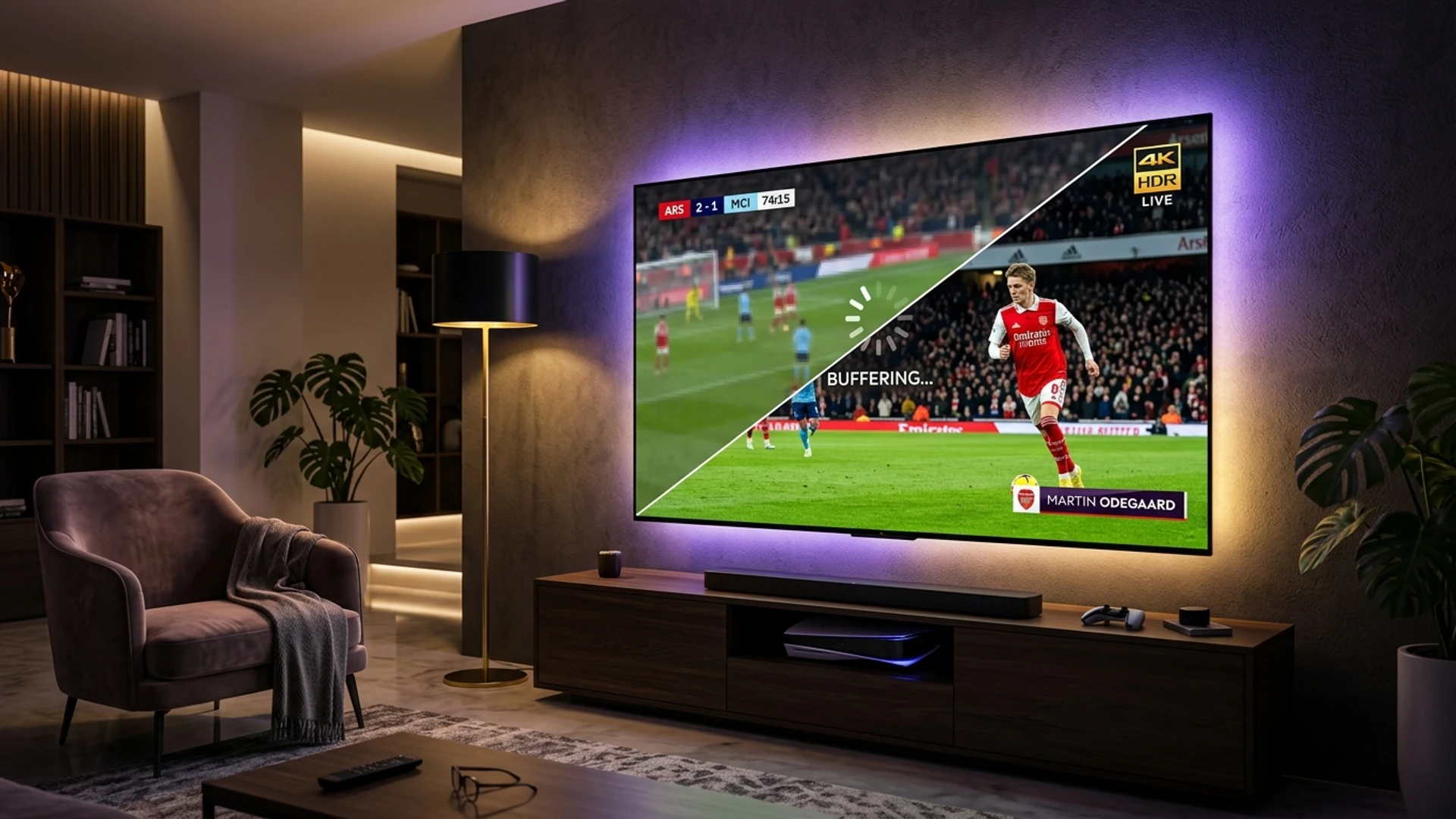
Few streaming interruptions are as frustrating as settling in to watch a high-stakes football match, a live pay-per-view fight, or a cinematic movie, only to see the picture suddenly collapse from a sharp, vibrant broadcast into a muddy, pixelated blur. One minute the turf is crisp and every player jersey is legible; the next, faces become indistinct smudges and on-screen scoreboards turn unreadable.
This phenomenon—commonly referred to as an IPTV quality drop—is widespread across internet-delivered television. While traditional cable and satellite connections transmit over dedicated physical coax or satellite transponders with fixed bandwidth, Internet Protocol Television operates across dynamic packet-switched IP networks. When network conditions waver, streaming software attempts to protect playback continuity by downgrading the video resolution.
While downscaling prevents the stream from stopping completely, frequent resolution drops destroy the viewing experience. If you are paying for high-definition or 4K entertainment on a modern large-screen television, you expect consistent fidelity.
In this comprehensive guide, we examine the underlying technical mechanics behind IPTV resolution scaling, dissect every root cause responsible for video degradation, and provide a systematic, field-tested troubleshooting blueprint to stabilize your playback. Whether you stream through an Android TV box, an Amazon Firestick, an Apple TV, or a native Smart TV application, the strategies outlined below will help you eliminate quality drops and maintain maximum picture clarity.
What Does an IPTV Quality Drop Actually Mean?
To troubleshoot resolution drops effectively, you must first understand what is happening inside your media player when the picture deteriorates.
Unlike legacy television broadcasts that push an unvarying continuous frequency signal, modern IPTV streams rely on digital video compression algorithms and packetized streaming protocols. Video streams are packaged into small segments—typically two to six seconds in duration—and delivered sequentially over HTTP or UDP connections.
When an IPTV client application requests a live channel, it continuously monitors how quickly these incoming data packets arrive into its internal buffer. If incoming data arrives faster than the video is being displayed, the player buffer remains full and the application requests the highest available bitrate tier—such as 4K Ultra HD (3840×2160) or Full HD 1080p at 60 frames per second.
However, if incoming data slows down and the buffer begins to drain, the media player faces an immediate operational choice:
- Freeze playback entirely (Buffering): Halt the video frame on screen while waiting for the buffer to replenish.
- Execute Adaptive Downscaling (Quality Drop): Switch immediately to an alternate, lower-bitrate stream profile—dropping from 1080p to 720p, or from 720p down to 480p or 360p Standard Definition.
By lowering the resolution and reducing the color data per frame, the required bandwidth drops significantly. The stream keeps playing without pausing, but the visual quality plummets. In many cases, viewers mistake this adaptive fallback for an intentional broadcast defect, when in reality it is an emergency mechanism triggered by bandwidth starvation or hardware rendering strain.
Understanding this distinction is crucial: a quality drop is an active symptom of an underlying bottleneck somewhere along the delivery path between the broadcast origin server and your television display panel.
The Core Technical Causes of IPTV Quality Drops
Video quality degradation rarely happens by chance. It is almost always the direct outcome of a specific technical bottleneck. Below are the primary culprits responsible for stream downgrades.
1. Inconsistent Bandwidth and Local Jitter
The single most common cause of fluctuating IPTV quality is not necessarily a low maximum download speed, but rather connection volatility. Many users run a speed test, see a result of 100 Mbps or 200 Mbps, and assume their internet is flawless.
However, standard web-based speed tests measure aggregate throughput over a short burst period. Live IPTV streaming demands continuous, low-latency packet delivery without intermittent gaps. If your connection suffers from high packet jitter (variance in packet arrival times) or micro-packet drops, your player buffer will empty during those micro-outages. Even if your average speed is 100 Mbps, a three-second drop to 2 Mbps forces the player to step down its video profile to avoid freezing.
2. Wi-Fi Frequency Congestion and Radio Attenuation
Connecting a streaming device over wireless Wi-Fi introduces multiple layers of interference:
- 2.4 GHz Spectrum Overcrowding: The 2.4 GHz Wi-Fi frequency band is crowded with Bluetooth devices, microwave ovens, baby monitors, and dozens of neighboring routers. This band has limited channel capacity and suffers from severe packet collisions.
- Physical Obstacles: Concrete walls, metal studs, mirror backings, and home entertainment cabinetry absorb high-frequency 5 GHz signals rapidly. A streaming stick plugged directly into the rear HDMI port of a television is often shielded by the TV's metal chassis, creating a dead zone.
- Dynamic Rate Shifting: When Wi-Fi signal strength drops even momentarily, wireless chipsets automatically negotiate a lower link speed with the router, causing throughput drops that trigger player downscaling.
3. Local Household Bandwidth Competition
A home network is a shared data pipeline. Even if your ISP delivers a solid connection, unmanaged local traffic can starve your IPTV client:
- Cloud backups from smartphones (photo and video syncing).
- Background game console updates (PlayStation, Xbox, or PC Steam downloads consuming full line speed).
- Other family members streaming 4K video or conducting multi-party video conferences. Without active Quality of Service (QoS) bandwidth management on your router, heavy background downloads will capture available bandwidth, pushing your IPTV stream into low-resolution fallback mode.
4. Router Memory Leaks and Bufferbloat
Residential routers provided by internet service providers are often built with inexpensive internal processors and minimal RAM. Over weeks and months of continuous operation, these routers accumulate routing table fragmentation, connection state table exhaustion, and thermal buildup.
Furthermore, inexpensive routers frequently suffer from bufferbloat—a condition where the router excessively buffers packets when the connection is saturated, adding hundreds of milliseconds of artificial latency. For live streaming protocols, this latency spike is catastrophic, leading directly to dropped frames and resolution reduction.
5. ISP Peering Bottlenecks and Video Stream Throttling
Your internet connection does not travel in a straight line from your home to an IPTV provider's edge servers. It traverses intermediate transit providers, Internet Exchange Points (IXPs), and peering links.
During peak evening viewing hours (typically between 7:30 PM and 11:00 PM), residential internet consumption surges across neighborhoods. Certain internet service providers experience congestion on specific international transit links. Additionally, some ISPs utilize Deep Packet Inspection (DPI) to identify high-bandwidth media streams and intentionally throttle throughput to protect their overall network capacity, directly depressing your streaming bitrate.
6. Streaming Hardware Processing Limitations
Video streams encoded in modern codecs like HEVC/H.265 or AV1 require significant computational power to decode in real time:
- Inexpensive generic Android TV boxes often lack dedicated hardware video decoders, forcing the device processor (CPU) to perform software decoding.
- Older Firesticks or low-memory Smart TV operating systems (such as older Tizen or webOS versions) can experience thermal throttling when decoding high-bitrate Full HD or 4K video streams for extended periods.
- When the processor overheats or RAM runs out, the operating system drops video rendering frames, prompting the IPTV player to request a lower resolution stream to prevent an operating system crash.
7. Incompatible or Suboptimal IPTV Player Settings
The media player application you use to parse your M3U playlist or Xtream Codes API credentials has a profound impact on stream stability. Inefficient media engines, disabled hardware acceleration flags, or inadequate software buffer allocations will cause playback degradation even on premium internet connections.
Tired of Quality Drops and Buffer Stalls?
Switch to Wizard TV dedicated anti-freeze streaming architecture. Enjoy uninterrupted 4K Ultra HD and 60 FPS live sports with guaranteed bitrate consistency.
Explore Wizard TV PlansStep-by-Step Diagnostic Routine: Isolating the Bottleneck
Before applying random fixes, follow this structured diagnostic routine to identify exactly where the bottleneck resides in your setup.
[Broadcast Server] ──> [ISP & Routing] ──> [Home Router] ──> [Wi-Fi / Ethernet] ──> [Device HW] ──> [IPTV Player]
        │                      │                   │                  │                   │               │
    Server Load?           Throttling?         Bufferbloat?       Signal Loss?         Thermal Drop?   Buffer Misconfig?
Phase 1: Device-Level Speed and Jitter Verification
Never rely on a speed test run on your smartphone to evaluate your television's network environment. Your smartphone has a completely different Wi-Fi antenna array, different spatial positioning, and different internal hardware.
- Install an analytical network speed test app directly on your streaming hardware (such as Analiti on Android TV/Fire TV, or access Fast.com via your device browser).
- Measure three specific metrics:
- Download Bandwidth: Must be at least 25–35 Mbps consistently for 4K streams, or 12–15 Mbps for Full HD 60fps streams.
- Latency (Ping): Should ideally remain below 40 ms.
- Jitter: Must remain below 5 ms. A jitter figure above 15 ms indicates unstable packet flow.
- Perform the test three times consecutively: morning, afternoon, and during peak evening hours (8:00 PM–10:00 PM). If speed drops drastically only in the evening, your bottleneck is ISP congestion or peak server load.
Phase 2: The Physical Ethernet Isolation Test
To rule out wireless interference definitively:
- Temporarily run a physical Cat5e or Cat6 Ethernet cable from your router directly to your streaming device or TV.
- Disable Wi-Fi in your device settings to force network traffic over the wired interface.
- Stream the exact channel that previously experienced quality degradation for 30 minutes.
- Result A: If the stream remains locked in Full HD/4K without dropping, your issue is 100% wireless Wi-Fi interference.
- Result B: If the stream still suffers from quality drops over a direct wired cable, your bottleneck is router configuration, ISP peering, or provider server delivery.
Phase 3: Multiple Device Cross-Check
Test the same channel on two different pieces of hardware in your home:
- Play the channel on your Smart TV / Firestick.
- Simultaneously or immediately after, test the exact same channel on a smartphone or computer connected to the same home network. If the stream is crisp on your computer but degrades on your TV box, your TV box hardware or its specific player application is failing to process the bitrate.
Practical Solutions to Permanently Fix Quality Drops
Once you have identified the likely failure point, apply these targeted optimizations to restore and maintain peak visual fidelity.
Solution 1: Transition to Wired Ethernet (or High-Performance Alternatives)
Wireless signals fluctuate by nature; physical copper Ethernet cables do not. A wired connection guarantees consistent throughput and zero radio frequency packet loss.
- Direct Cat6 Cabling: The gold standard for any fixed home theater display.
- Powerline Network Adapters: If your router is located in another room and running Ethernet cables across hallways is impossible, high-grade Powerline adapters (such as AV2000 models) transmit network data across your home's existing electrical copper wiring, delivering far greater stability than congested Wi-Fi.
- Dedicated MoCA Adapters (Multimedia over Coax): If your home has coaxial cable outlets near your router and entertainment center, MoCA 2.5 adapters turn coaxial wall plates into high-speed 2.5 Gbps Ethernet links with sub-3ms latency.
Solution 2: Optimize Wi-Fi Configuration (If Wiring Is Impossible)
If wireless connection is your only viable path, implement these adjustments immediately:
- Force the 5 GHz Frequency Band: Split your router's wireless bands into separate SSIDs (e.g., "HomeNetwork_2.4G" and "HomeNetwork_5G"). Connect your streaming hardware strictly to the 5 GHz band. While 5 GHz has a shorter physical range, it provides vastly wider channel bandwidth and is virtually immune to appliance interference.
- Select Non-Overlapping DFS Channels: Use a Wi-Fi analyzer app to inspect neighboring wireless networks. Manually set your 5 GHz channel in router settings to a clean, non-congested frequency (such as Channel 36, 44, or clean DFS channels).
- Use an HDMI Extender Dongle: Never seat a streaming stick flush against the back of your television chassis. Use a short 6-inch or 12-inch HDMI extender cable to position the streaming dongle away from the metal rear housing of the television, drastically improving antenna reception.
- Deploy a Mesh Wi-Fi Satellite Node: In large multi-story homes, place a dedicated Mesh satellite unit within direct line-of-sight of your entertainment center and connect your TV box to the satellite's Ethernet port.
Solution 3: Reconfigure IPTV Player Engine and Buffer Allocations
The settings inside your IPTV application dictate how aggressively it downscales video when micro-interruptions occur.
Configure Video Buffer Length
Most modern applications—such as TiviMate, IPTV Smarters Pro, IBO Player, or OTT Navigator—feature an adjustable buffer cache setting:
- Default Setting: Typically set to "Small" or "Auto" (0.5 to 1.5 seconds of video frames). Under this default, even a momentary half-second network pause empties the buffer, triggering immediate resolution downscaling.
- Recommended Optimization: Navigate to Settings > Playback > Buffer Size and increase the buffer cache to Medium (3–5 seconds) or Large (5–10 seconds).
- Trade-off Notice: A larger buffer introduces a brief 2-second initial loading delay when switching channels, but it provides a massive safety cushion that absorbs internet speed drops without degrading picture quality.
Switch Hardware Video Decoders
Inside your player settings, locate the Decoder or Playback Engine options:
- Hardware (HW / MediaCodec): Utilizes the dedicated graphics chipset inside your streaming device. This mode is essential for smooth 4K and 1080p 60fps rendering with low CPU utilization.
- Hardware Plus (HW+): Available on certain advanced players, providing enhanced color space mapping and de-interlacing.
- Software (SW): Forces the device CPU to decode frames manually. Never use Software decoding for high-bitrate sports or 4K streams unless hardware decoding completely fails to output audio/video.
Toggle Automatic Bitrate Switching (ABR)
Some media player applications include a setting labeled "Adaptive Bitrate" or "Auto Quality". If your IPTV service provides multi-bitrate HLS streams, this setting instructs the player to automatically downscale whenever throughput dips. If you prefer the stream to pause for half a second rather than dropping into blurry 480p, disable "Adaptive Bitrate" and lock the player to the highest resolution profile.
Router-Level Tuning for High-Fidelity IPTV
Optimizing your home router ensures that streaming packets receive unconditional priority over non-critical household traffic.
Router Traffic Priority (QoS Queue):
[Highest Priority] ──> IPTV Streaming Box (Port / IP Priority)
[Medium Priority]  ──> Work Laptops & Video Calls
[Lowest Priority]  ──> Background Cloud Backups & OS Downloads
1. Assign a Static Local IP and Configure Quality of Service (QoS)
Log into your home router's administrative dashboard (typically accessible at 192.168.1.1 or 192.168.0.1):
- Navigate to the DHCP Reservation or Static IP section and assign a permanent local IP address to your streaming hardware based on its MAC address.
- Locate the Quality of Service (QoS) or Traffic Prioritization settings.
- Add a high-priority rule assigning maximum bandwidth priority to the static IP address of your streaming box.
- If your router supports Smart Queue Management (SQM)—such as Cake or FQ-CoDel algorithms—enable it. SQM completely eliminates bufferbloat by preventing large file downloads from monopolizing network buffers.
2. Configure High-Performance DNS Resolvers
When your player requests new video segments from content delivery networks, fast DNS resolution ensures rapid segment handshakes. Default ISP DNS servers are often slow, congested, and prone to routing errors. Manually configure fast, privacy-focused third-party DNS resolvers directly inside your router or streaming device:
- Cloudflare DNS: Primary:
1.1.1.1, Secondary:1.0.0.1 - Google Public DNS: Primary:
8.8.8.8, Secondary:8.8.4.4 - Quad9 Secure DNS: Primary:
9.9.9.9, Secondary:149.112.112.112
3. Implement Scheduled Automated Reboots
To prevent router memory fragmentation and clear temporary packet routing tables, enable an automated scheduled reboot in your router settings (e.g., every Tuesday and Saturday at 4:00 AM). Regularly flushing router memory prevents latency creep over time.
Evaluating Device Hardware Performance
Not all streaming hardware is built to sustain continuous high-bitrate streaming. If your device lacks adequate memory, thermal dissipation, or decoding capabilities, it will perpetually trigger quality drops regardless of internet speed.
Device Comparison for High-Bitrate IPTV Playback
| Device Category | Examples | 4K 60FPS Support | Hardware Decoding | Ethernet Port | Stability Rating |
|---|---|---|---|---|---|
| Tier 1: Flagship Streamers | NVIDIA Shield TV Pro, Apple TV 4K | Exceptional | Dual HW + AI Upscaling | Gigabit (1000M) Built-in | 99.9% (Zero Lag) |
| Tier 2: Certified Media Sticks | Fire TV Stick 4K Max, Chromecast Google TV | Excellent | Dedicated HW (HEVC/AV1) | Requires USB Adapter | 95% (Highly Stable) |
| Tier 3: Built-in Smart TV OS | Samsung Tizen, LG webOS, Sony Google TV | Good to Fair | Built-in Decoder | Fast Ethernet (100M) | 85% (Memory Constrained) |
| Tier 4: Generic Android Boxes | Unbranded Allwinner/Rockchip Boxes | Poor to Unreliable | Inconsistent / Software | Unshielded 100M | 40% (Frequent Drops) |
Key Hardware Thresholds for Flawless Playback
- RAM: Minimum 2 GB of available system memory. Devices with 1 GB or less frequently run out of memory when caching high-bitrate streams, forcing app restarts or visual degradation.
- Storage Headroom: Ensure your streaming device has at least 1.5 GB to 2 GB of free internal flash storage. IPTV players utilize local storage to cache EPG data and temporary video buffer segments. When flash memory fills up, playback begins to stutter.
- Active Thermal Management: Streaming sticks positioned directly against hot TV panels can reach 70°C+ during extended use, causing thermal throttling. If your stream degrades only after 45–60 minutes of viewing, hardware overheating is likely the root cause.
When ISP Throttling Is the Culprit: Bypassing Carrier Restrictions
If your speed tests report exceptional performance across ordinary web services, yet your IPTV streams consistently drop in quality during prime-time hours or during live sports events, your Internet Service Provider may be engaging in targeted bandwidth management or stream throttling.
ISPs analyze incoming and outgoing network traffic patterns. Continuous UDP video streams from known streaming content delivery networks can be automatically flagged and assigned to lower-priority traffic classes during peak evening hours.
Direct Connection (Subject to ISP Throttling):
[Streaming Box] ──> [ISP Deep Packet Inspection] ──> [Throttled Stream] ──> Quality Drop!

Encrypted Tunnel Connection (Bypasses Throttling):
[Streaming Box] ──> [Encrypted WireGuard Tunnel] ──> [ISP Sees Random Traffic] ──> Locked Full HD!
How to Diagnose ISP Throttling
- Note the visual quality of a live sports channel or movie broadcast during peak evening hours (e.g., 8:30 PM).
- Install a verified high-speed VPN application directly on your streaming hardware.
- Connect using the modern WireGuard protocol to a geographically close server node (ideally within 100–200 miles of your physical location).
- Reload the IPTV stream.
- Diagnosis: If the stream immediately locks into Full HD / 4K and quality drops cease entirely, your ISP was actively throttling your connection or routing through a congested peering transit node. The VPN encryption tunnel prevents your ISP from identifying media packets, completely bypassing carrier throttling.
Why Server Infrastructure Matters: The Wizard TV Difference
While client-side optimizations—such as Ethernet wiring, buffer adjustments, and router QoS—are vital, they cannot compensate for an oversold, underpowered streaming server infrastructure.
Budget IPTV services often host thousands of concurrent streams on bare-metal servers with inadequate outbound transit ports. When major sporting events or weekend prime-time viewing periods begin, these servers reach 100% capacity. When an upstream server becomes saturated, it cannot push video segments fast enough, forcing every connected user's player into emergency downscaling.
At Wizard TV, our streaming ecosystem is engineered from the ground up to prevent server-side quality degradation:
- Global Edge Delivery Nodes: Stream data is routed through a distributed Content Delivery Network (CDN) with multi-gigabit edge clusters located across North America, Europe, and the UK, drastically minimizing physical latency.
- Dynamic Load Balancing: Incoming viewer connections are dynamically distributed across synchronized server clusters, ensuring that sudden viewer surges during major sporting events never overwhelm individual nodes.
- Dedicated High-Bitrate Feeds: Our premium live channels and 4K VOD libraries are delivered with high bitrate ceilings, allowing compatible players to maintain razor-sharp clarity without artificial downsampling.
- Anti-Freeze 10.0 Protocol: Our backend streaming relays continuously monitor packet acknowledgment round-trips, seamlessly rerouting stream feeds if an upstream transit link experiences packet loss.
To experience the difference that dedicated streaming infrastructure makes, explore our flexible options on the Wizard TV Pricing page.
Comprehensive Troubleshooting Checklist: Quality Drops
Keep this quick-reference checklist handy whenever your IPTV picture quality begins to fluctuate:
[ ] 1. Switch device from Wi-Fi to a direct Ethernet cable or 5 GHz band.
[ ] 2. Measure local jitter (<5ms) and latency (<40ms) using an on-device speed test.
[ ] 3. Increase player buffer allocation to Medium (3-5s) or Large (5-10s).
[ ] 4. Confirm Hardware (HW) video decoding is enabled in player settings.
[ ] 5. Reboot router and streaming hardware to flush temporary memory leaks.
[ ] 6. Ensure at least 1.5 GB of free internal flash storage exists on the device.
[ ] 7. Change router DNS to Cloudflare (1.1.1.1) or Google (8.8.8.8).
[ ] 8. Pause background downloads, torrent clients, and console updates on the network.
[ ] 9. Test connection with an encrypted WireGuard VPN to rule out ISP throttling.
[ ] 10. Verify service status and server metrics via the Wizard TV support desk.
Experience Flawless 4K Streaming Today
Get instant automated setup across Smart TVs, Android boxes, Firestick, and Apple TV. Backed by 24/7 technical support and high-speed global delivery nodes.
Get Wizard TV NowFrequently Asked Questions
Conclusion
Sudden IPTV quality drops during live television broadcasts are neither random nor inevitable. In the vast majority of cases, they represent a protective mechanism executed by your media player in response to temporary bandwidth starvation, wireless packet collisions, buffer misconfiguration, or ISP-level transit congestion.
By systematically diagnosing your streaming chain—transitioning from congested Wi-Fi to wired Ethernet, optimizing your player buffer and hardware decoders, configuring router QoS, and ruling out carrier throttling—you can eliminate resolution fluctuations and lock in the pristine 4K and Full HD clarity your display was designed to deliver.
When paired with a robust, enterprise-grade streaming infrastructure, your home entertainment system becomes a true cinema-grade experience. To discover rock-solid channel stability, low-latency live sports, and thousands of 4K entertainment titles backed by anti-freeze technology, explore our complete offerings on the Wizard TV Homepage or consult our comprehensive Installation Guides to optimize your setup today.