IPTV Not Working? 18 Common Problems and Step-by-Step Fixes (2026 Guide)
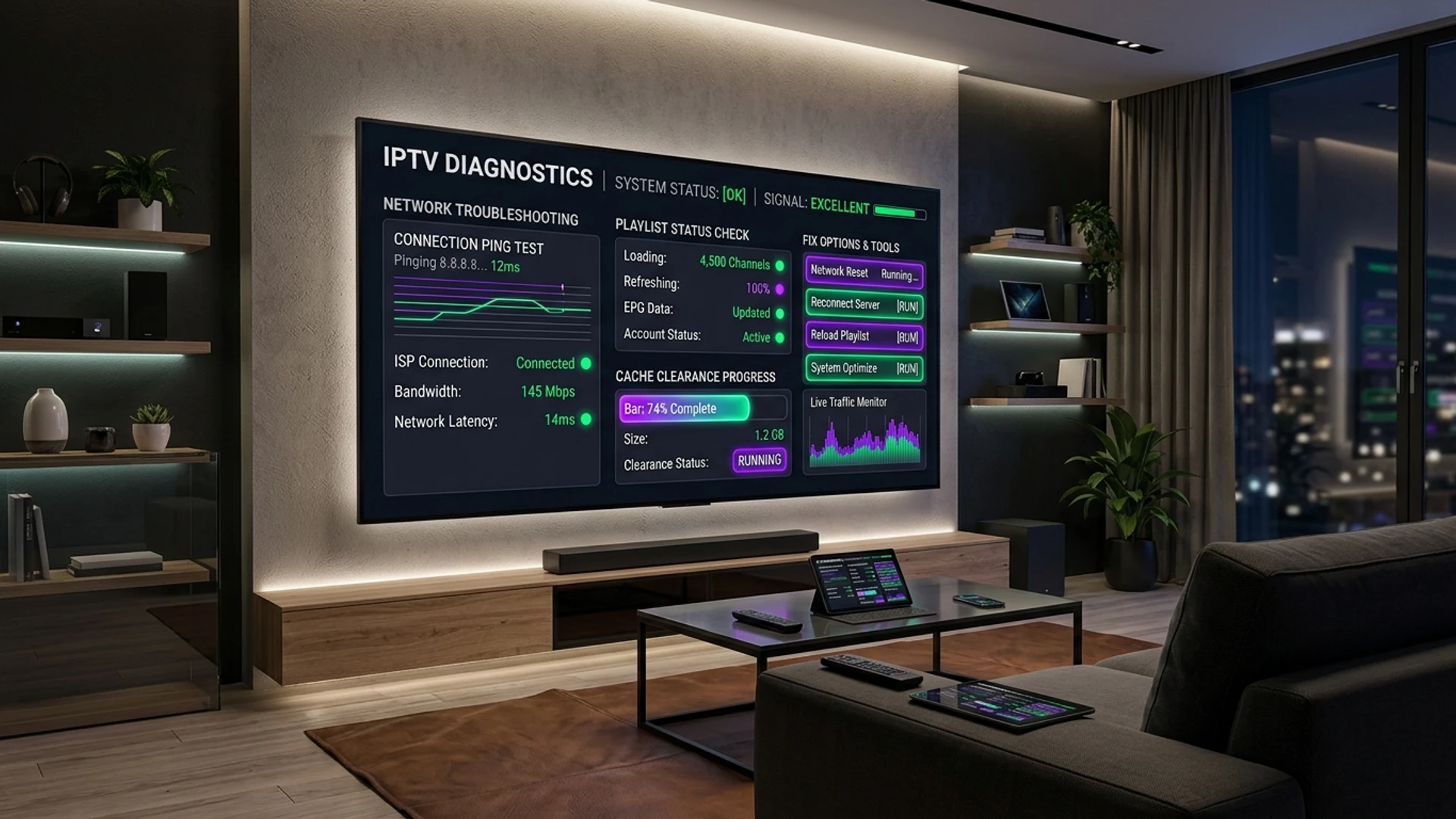
Nothing disrupts an evening of home entertainment quite like sitting down to watch a live sporting event, news broadcast, or favorite television show only to be confronted with a spinning buffer wheel, an ambiguous "Stream Failed" error, or a pitch-black screen.
Unlike traditional terrestrial cable or satellite television—which operate over closed, single-purpose physical networks—Internet Protocol Television functions across an intricate, multi-layered digital transmission ecosystem. When a live channel fails to display, the breakdown could stem from any point along a complex delivery chain: your home Wi-Fi network, router firewall tables, local streaming device hardware, player application cache, Internet Service Provider (ISP) traffic filters, or upstream broadcast servers.
Because error messages on IPTV players (like TiviMate, IPTV Smarters Pro, or Smart TV apps) are often unhelpful—frequently displaying generic alerts like "Error Code 403," "Playback Failed," or "Check Playlist"—most users feel helpless when problems occur.
The truth is that over 90% of all IPTV playback failures are caused by local configuration errors, network bottlenecks, or cache corruption that can be diagnosed and fixed in less than five minutes without technical expertise.
This guide is the definitive master troubleshooting manual for IPTV in 2026. Below, we break down 18 distinct failure modes, analyze the exact technical reasons why each error occurs, and provide clear, step-by-step instructions to restore your television service quickly.
The Universal 60-Second IPTV Diagnostic Protocol
Before dissecting specific error codes, execute this universal triage routine. This 60-second diagnostic will immediately resolve over half of all temporary streaming disruptions:
[Universal 60-Second Triage]
  ├── Step 1: Power Cycle Router & Streaming Box (Unplug power for 30 seconds)
  ├── Step 2: Clear Media Player App Cache (Settings > Apps > Clear Cache)
  ├── Step 3: Test Channel on Secondary Device (Smartphone or Laptop)
  └── Step 4: Toggle WireGuard VPN Connection (Rule out local ISP throttling)
- Perform a Full Hardware Power Cycle: Do not simply put your television or streaming stick into sleep mode with the remote. Unplug your Wi-Fi router, modem, and streaming device (Firestick, Android box, or Apple TV) from their wall power outlets. Wait 30 seconds to allow the internal capacitors to discharge completely, then plug the router in first, followed by your streaming hardware two minutes later. This clears routing table memory leaks, resets local DHCP leases, and establishes a fresh connection with your ISP.
- Clear the Player Application Cache: On Android TV or Fire TV, navigate to Settings > Applications > Manage Installed Applications > [Your IPTV App] > Clear Cache (do not click "Clear Data," which erases your login credentials). This eliminates corrupted temporary video buffer chunks.
- Cross-Check on a Secondary Device: Open your playlist credentials on a smartphone (using cellular data) or a laptop. If the channel plays instantly on cellular data but fails on your home television, the issue is 100% located within your local home network or ISP routing.
- Toggle an Encrypted WireGuard VPN: If your ISP is actively blocking streaming ports or filtering media packets, connecting to a fast VPN server will bypass carrier restrictions immediately.
If the stream remains offline after the quick triage, identify your specific symptom among the 18 problems below.
18 Common IPTV Problems and Step-by-Step Fixes
┌─────────────────────────────────────────────────────────────────────────┐
│                    IPTV TROUBLESHOOTING CATEGORIES                     │
├──────────────────────────┬──────────────────────────┬───────────────────┤
│    Playback & Video      │    Network & Connectivity│   Account & EPG   │
├──────────────────────────┼──────────────────────────┼───────────────────┤
│ • Black Screen           │ • Stream Buffering       │ • 403 Forbidden   │
│ • Audio / Video Desync   │ • Stream Failed (404)    │ • Auth Failed     │
│ • No Audio Output        │ • ISP Port Blocking      │ • Missing EPG     │
│ • App Crash on Zap       │ • Wi-Fi vs Cellular Fail │ • Missing Groups  │
│ • 4K Stuttering          │ • Router NAT / Firewall  │ • Expired Account │
└──────────────────────────┴──────────────────────────┴───────────────────┘
Problem 1: IPTV App Refuses to Load or Freezes on Splash Screen
- Symptom: You click the IPTV player icon on your TV or Firestick, and the screen hangs indefinitely on the developer logo, displays a loading spinner, or crashes directly back to the home screen.
- Root Cause: Corrupted local cache files, low internal device storage (less than 500 MB free), or an operating system process conflict.
- The Step-by-Step Fix:
- Navigate to your streaming device settings: Settings > Applications > Manage Applications > [Your IPTV Player].
- Click Force Stop to terminate any hung background processes.
- Click Clear Cache.
- Check your device's internal storage: Settings > My Fire TV (or Device Settings) > About > Storage. If free storage is below 1 GB, uninstall unused applications, delete old APK download files in your Downloader folder, and restart the device.
- If the app continues to crash, backup your playlist data, uninstall the app, download the latest version, and reinstall.
Problem 2: Continuous Buffering Every Few Seconds
- Symptom: The channel plays for three to five seconds, freezes with a spinning circle, resumes briefly, and repeats endlessly.
- Root Cause: Local network jitter, Wi-Fi packet collisions, saturated household bandwidth, or a player buffer cache configured too aggressively.
- The Step-by-Step Fix:
- Increase Buffer Cache: In your player settings (such as TiviMate), navigate to Settings > Playback > Buffer Size. Change the setting from "Normal" or "None" to Large (5–10 seconds). This gives your device the buffer margin required to absorb micro-speed drops.
- Switch to Wired Ethernet: Disconnect from Wi-Fi and connect an Ethernet cable directly from your router to your TV box. If direct cabling is impractical, use Powerline adapters.
- Check Channel Backups: If you are watching a major sports event, look in your channel list for redundant backup feeds (e.g., "Sky Sports Main Event Backup"). Secondary feeds operate on independent server clusters that avoid high-traffic bottlenecks.
- For an exhaustive deep-dive into stabilizing connection speeds, read our guide on Fixing IPTV Quality Drops.
Problem 3: Black Screen With Audio Playing (Sound but No Picture)
- Symptom: You select a channel, and the audio commentary plays through your television speakers clearly, but the screen remains completely black.
- Root Cause: A video codec decoding mismatch. The streaming device's graphics processor cannot decode the incoming video stream format using its current hardware acceleration settings.
- The Step-by-Step Fix:
- Open your IPTV application settings and locate the Playback or Decoder section.
- Change the video decoder mode:
- If currently set to Hardware (HW), toggle to Software (SW) or Hardware Plus (HW+).
- In applications like IPTV Smarters Pro, switch the player engine from ExoPlayer to VLC Player.
- If using an external streaming stick, ensure your television HDMI port supports the broadcast color space (enable "Enhanced HDMI" or "HDMI Ultra HD Color" in your TV's input settings).
Problem 4: Picture Plays Smoothly but There Is No Audio
- Symptom: High-definition video plays fluidly on screen, but there is complete silence.
- Root Cause: The broadcast audio track is encoded in an advanced multi-channel format (such as Dolby Digital Plus E-AC3 or DTS) that your television or soundbar cannot decode without passthrough authorization.
- The Step-by-Step Fix:
- While the channel is playing, bring up the on-screen playback control bar and click the Audio Track icon.
- If multiple audio tracks are listed (e.g., "Track 1: AC3 5.1", "Track 2: AAC Stereo"), switch to the AAC Stereo track.
- In your streaming box audio settings, navigate to Settings > Display & Sounds > Audio > Surround Sound and change the output from "Best Available" to PCM or Stereo.
- Inside your player settings, enable Audio Passthrough if you are connected to a dedicated soundbar or AV receiver via HDMI eARC.
Problem 5: Audio and Video Out of Sync (Lipsync Delay)
- Symptom: Actor dialogue or sports commentary is heard two seconds before or after mouth movements on screen.
- Root Cause: Bluetooth audio latency (from wireless headphones or soundbars) or frame rate interpolation processing on your television panel.
- The Step-by-Step Fix:
- Adjust Player Audio Offset: Advanced media players (like TiviMate) feature a dedicated Audio Delay slider. While playing the out-of-sync channel, press the center remote button, select Audio Settings, and adjust the offset in 50ms increments (e.g., -200ms or +150ms) until audio and video synchronize perfectly.
- Turn Off TV Audio Processing: In your TV's sound settings, disable features like "Dialogue Enhancement," "Virtual Surround," or "Auto Volume Equalizer," which add post-processing delay to audio signals.
Problem 6: "Stream Failed," "Playback Error," or HTTP Error 404
- Symptom: Selecting a channel displays an immediate pop-up: "Stream Failed: Server returned 404" or "Playback Error: DataSourceException."
- Root Cause: The broadcast satellite transponder frequency has changed, the provider is temporarily re-indexing the stream URL, or your local DNS resolver is failing to resolve the stream server hostname.
- The Step-by-Step Fix:
- Reload Playlist: In your player settings, navigate to your playlist profile and click Update Playlist or Reload Channels. This fetches updated server routing paths.
- Update DNS Resolvers: Change your router or device DNS servers to Cloudflare (1.1.1.1 and 1.0.0.1) or Google (8.8.8.8 and 8.8.4.4). ISP default DNS servers frequently fail to resolve content delivery network subdomains.
- Check Alternative Regional Feeds: If the US feed of a network is down, check the UK or Canadian feed of the same network in your channel guide.
Problem 7: "Authorization Failed," "Error 403 Forbidden," or Login Rejection
- Symptom: Your IPTV app displays "Authentication Failed," "403 Forbidden," or prompts you to enter your username and password repeatedly.
- Root Cause: Account expiration, credential typos, unauthorized simultaneous multi-device streaming, or provider security IP locking.
- The Step-by-Step Fix:
- Verify Credential Casing: Xtream Codes usernames, passwords, and server URLs are strictly case-sensitive. Verify that your device keyboard did not automatically capitalize the first letter of your username or password.
- Check for Trailing Spaces: If you copied and pasted your login URL or password, ensure there is no blank space character at the end of the text.
- Check Concurrent Device Limits: If your plan includes only one connection, verify that an old phone, tablet, or secondary TV is not streaming in the background. Close the app completely on other devices.
- Log Into Your Client Dashboard: Check your account status on your provider's customer billing portal to confirm your subscription has not expired. If you need to renew, visit Wizard TV Pricing.
Problem 8: Electronic Program Guide (EPG) Is Blank or Not Updating
- Symptom: Channel names appear, but the guide grid displays "No Information" across all channels.
- Root Cause: EPG caching file corruption, incorrect device system clock, or an outdated XMLTV URL source.
- The Step-by-Step Fix:
- Verify Device Date and Time: This is the most common cause of EPG failure. If your streaming device clock is offset by even 15 minutes, the EPG cannot map schedules. Navigate to your device settings > Date & Time > ensure Automatic Date & Time (Network-provided) is enabled.
- Clear EPG Data: In your IPTV player settings, navigate to EPG > Clear EPG Data, then click Update EPG. Allow the application 1 to 2 minutes to download fresh XMLTV tables.
- Check EPG Source Assignment: In players like TiviMate, navigate to Settings > Playlists > [Your Playlist] > Manage EPG and ensure the provider's primary EPG source is actively assigned to your channel list.
Problem 9: Entire Channel Categories Suddenly Disappeared
- Symptom: Your "Sports" or "Movie" categories have vanished from your channel guide, leaving only a few random groups.
- Root Cause: Accidental group hiding in player settings, or an automated category filter triggered by parental control toggles.
- The Step-by-Step Fix:
- In your player application, navigate to Manage Groups or Group Display Settings.
- Look for groups marked as "Hidden" or unchecked. Click Unhide All or check the missing sports and entertainment categories.
- Check parental controls: ensure no pin-locked restriction is hiding adult or premium channel groupings.
- Execute a full playlist refresh to pull updated server group structures.
Problem 10: IPTV Works on Home Wi-Fi but Fails on Mobile Data (or Vice Versa)
- Symptom: Streams play smoothly when connected to home internet, but show "Connection Error" when attempting to stream over mobile 5G/LTE data.
- Root Cause: Mobile carrier content filters or carrier-grade NAT (CGNAT) restrictions on mobile networks.
- The Step-by-Step Fix:
- Many cellular carriers (such as EE, Vodafone, T-Mobile, or Verizon) have automated "Safe Browsing" or "Parental Filters" enabled by default on mobile data plans that block streaming ports. Log into your mobile carrier account online and disable content filtering.
- Enable an encrypted VPN on your mobile phone before launching your IPTV player.
- Verify that your IPTV provider does not enforce an IP-lock policy (which restricts account access to a single home IP address). Wizard TV subscriptions allow full mobile access across global networks.
Problem 11: App Crashes Instantly When Zapping Channels
- Symptom: You browse the guide smoothly, but the moment you click on a channel, the entire IPTV application crashes to your device home screen.
- Root Cause: Hardware video decoder crash caused by an incompatible audio/video stream format, or system RAM exhaustion.
- The Step-by-Step Fix:
- Open your player settings and change the primary playback engine from ExoPlayer to IjkPlayer or VLC.
- In Android/Fire TV settings, navigate to Developer Options > Background Process Limit and ensure it is set to "Standard Limit."
- Check available internal device RAM. Close background applications using a task manager utility (such as Background Apps & Process List on Fire TV).
Problem 12: Channels Stutter in 4K but 1080p Plays Perfectly
- Symptom: Full HD channels play without flaw, but tuning to any 4K Ultra HD channel causes severe stuttering, frame drops, and audio desynchronization.
- Root Cause: Insufficient local bandwidth headroom, lack of hardware HEVC/H.265 decoding support on older streaming sticks, or thermal throttling.
- The Step-by-Step Fix:
- Run a Speed Test on the Device: 4K streams require a minimum of 25 to 35 Mbps of continuous throughput with low jitter. If your device achieves only 18 Mbps, 4K streams will inevitably stall.
- Verify Hardware Compatibility: Ensure your streaming device is a certified 4K model (e.g., Fire TV Stick 4K Max, Apple TV 4K, NVIDIA Shield). Basic 1080p streaming sticks lack the graphics processing silicon required to decode 4K video feeds.
- Check Physical TV Port: Ensure your streaming stick is plugged into an HDMI 2.0 / 2.1 (HDCP 2.2) port on your television. Older HDMI 1.4 ports cannot transmit 4K at 60 Hz.
Problem 13: The Channel Guide Shows the Wrong Broadcast Times
- Symptom: The EPG displays program titles, but the schedule is shifted by one or two hours (e.g., an 8:00 PM show is listed at 7:00 PM).
- Root Cause: Time zone offset mismatch between your physical geographic location and the provider's EPG server origin.
- The Step-by-Step Fix:
- Inside your IPTV player EPG settings, locate the Time Shift or EPG Time Offset slider.
- If programs are displayed one hour early, adjust the time shift to +1.00 hour (or -1.00 hour if displayed late).
- Click Apply and refresh your guide. All schedule timelines will align perfectly with your local television clock.
Problem 14: "Too Many Connections" or "Connection Limit Reached"
- Symptom: Launching a stream displays an error message stating "Max Connections Reached" or kicks an existing stream offline.
- Root Cause: Your subscription tier allows only one (or two) simultaneous streams, and another device in your home is actively connected to the server.
- The Step-by-Step Fix:
- Check all household screens: ensure an application running in the bedroom, a tablet in the kitchen, or a background recording on your PC is completely closed.
- Remember that simply pressing "Home" on your Fire TV remote does not always stop a stream; the app may continue streaming audio/video in the background. Open the app, press the Back button until you exit cleanly, or force-stop the application in device settings.
- If your household routinely streams on multiple screens, upgrade to a multi-connection subscription package on the Wizard TV Pricing page.
Problem 15: Subtitles Are Missing or Completely Desynchronized
- Symptom: On-demand movies or live international channels fail to display closed captions, or subtitles appear 10 seconds before spoken dialogue.
- Root Cause: Missing embedded subtitle tracks, or an uncalibrated external subtitle timing offset.
- The Step-by-Step Fix:
- While the video is playing, open playback options and click the CC / Subtitles button.
- If the stream includes embedded subtitle tracks, toggle between "Track 1" and "Track 2."
- If your player supports online subtitle searching (such as TiviMate's integration with OpenSubtitles), select "Search Subtitles," download an SRT file matching your movie title, and use the Subtitle Delay slider to synchronize text with audio.
Problem 16: Catch-Up TV (Time-Shift) Fails to Load
- Symptom: You click a past program marked with a catch-up clock icon, but the video displays a loading error or plays the live broadcast instead.
- Root Cause: The program aired outside the provider's active catch-up retention window (typically 24 to 72 hours), or your player's stream output format is set to HLS instead of MPEG-TS.
- The Step-by-Step Fix:
- Verify the broadcast date: catch-up servers archive broadcasts for a rolling window of 2 to 3 days. Programs older than the retention window are automatically purged.
- In your player settings, navigate to Playlist Settings > Stream Format and toggle between MPEG-TS and HLS. Certain catch-up archives require MPEG-TS architecture to process time-shift headers accurately.
Problem 17: Router Firewall or ISP DNS Blocks the Server
- Symptom: You cannot log into your IPTV subscription at all, speed tests are fast, but the provider's server URL fails to respond.
- Root Cause: Your home router has aggressive "Smart Security" or "Shield" features enabled (common on Comcast Xfinity, Virgin Media, and BT routers) that misclassify streaming servers as security risks.
- The Step-by-Step Fix:
- Disable ISP Content Security: Log into your ISP customer web portal (e.g., Xfinity xFi, Virgin Media Web Safe, BT Parental Controls). Turn off "Advanced Security" or whitelist your streaming device.
- Change DNS Resolvers: Replace your router's default DNS with Cloudflare DNS (
1.1.1.1and1.0.0.1). - Turn on a VPN: An encrypted WireGuard VPN tunnel completely conceals the destination server from your router and ISP, bypassing all DNS hijacking and firewall blocks.
Problem 18: Everything Stuttered Only After an App Update
- Symptom: The service streamed without flaw for months, but immediately after an automatic application update, playback became choppy and sluggish.
- Root Cause: The updated app version altered default decoding flags or introduced a bug incompatible with your specific hardware firmware.
- The Step-by-Step Fix:
- Navigate to player settings and re-verify that Hardware Decoding (HW) is still enabled; major updates frequently reset decoder preferences to default software modes.
- Clear app cache and reboot your streaming hardware.
- If the update is fundamentally broken on your hardware, roll back to the previous stable APK build using the Downloader app.
Tired of Constant IPTV Stream Errors?
Switch to Wizard TV rock-solid streaming infrastructure. Enjoy 99.99% server uptime, anti-freeze stream protection, and dedicated 24/7 technical customer support.
Explore Wizard TV PlansAdvanced Network Tuning: MTU Sizes, Stream Protocols & DNS
For persistent streaming issues that defy standard quick fixes, digging into low-level network parameters often yields permanent stability breakthroughs.
[Advanced Network Layer Diagnostics]
├── MTU Sizing ───────────> Prevent packet fragmentation (Optimal: 1450–1500 bytes)
├── Streaming Protocol ───> MPEG-TS for raw speed vs HLS for adaptive error recovery
├── DNS Server Overrides ─> Bypass ISP content blocks (Cloudflare 1.1.1.1 / Google 8.8.8.8)
└── Router IPv6 Toggles ──> Disable IPv6 if experiencing intermittent channel timeouts
1. Maximum Transmission Unit (MTU) Optimization
The MTU setting specifies the largest data packet size (in bytes) that your network can transmit without fragmentation. If your router's MTU is set higher than your ISP's network threshold, streaming video packets are broken into fragments. Packet fragmentation introduces latency and can trigger random "Stream Failed" drops.
- Standard Baseline: 1500 bytes (standard for Ethernet and cable connections).
- DSL / PPPoE Connections: Typically require an MTU of 1492 or 1452 bytes.
- VPN Streaming: VPN encryption headers add 40 to 60 bytes of overhead per packet. If streaming through a VPN, lowering your device or router MTU to 1420 or 1400 prevents fragmentation-induced buffer stalls.
2. Stream Format Selection: MPEG-TS vs. HLS (HTTP Live Streaming)
Inside advanced players like TiviMate or OTT Navigator, you can specify the output format used to request stream feeds:
- MPEG-TS (.ts): Delivers raw, unchunked broadcast transport streams with minimal latency. It offers the fastest channel switching (zapping) times and full multi-audio track support. However, it requires a rock-solid, uninterrupted connection; any packet drop can cause a momentary glitch.
- HLS (.m3u8): Slices streams into short segmented chunks. It is vastly more resilient to fluctuating Wi-Fi connections because the player requests video chunk by chunk. If you suffer from frequent stream disconnects on MPEG-TS, toggling your playlist format to HLS often solves the problem instantly.
3. Disabling IPv6 for Legacy Streaming Clients
While IPv6 is the future of internet addressing, many residential ISP IPv6 implementations suffer from poor transit routing and half-implemented peering tables. If your streaming box attempts to resolve a broadcast server over IPv6 and times out before falling back to IPv4, you will experience severe 5-to-10 second channel loading delays.
- The Fix: In your television or router network settings, locate IPv6 and toggle it to Disabled, forcing all network traffic over reliable IPv4 routes.
When to Contact Provider Support vs. Fixing It Yourself
Use this quick-decision matrix to determine whether an issue requires customer support assistance or a local fix:
┌──────────────────────────────────────────┬──────────────────────────────────────────┐
│      LOCAL ISSUE (Fix It Yourself)       │     PROVIDER ISSUE (Contact Support)     │
├──────────────────────────────────────────┼──────────────────────────────────────────┤
│ • Buffering on all channels              │ • A single channel is offline / looping  │
│ • App crashing on launch                 │ • Billing or account expiration queries  │
│ • Audio out of sync on one device        │ • Adding missing channels or VOD titles  │
│ • Wi-Fi signal dropouts                  │ • Server transponder frequency updates   │
│ • EPG time zone shift                    │ • Upstream satellite storm interference  │
└──────────────────────────────────────────┴──────────────────────────────────────────┘
If only a single channel stutters while hundreds of other channels stream cleanly, the problem is upstream at the broadcast transponder. Report the channel name to our dedicated Wizard TV Customer Support desk via WhatsApp or live chat, and our engineering team will re-index the stream feed immediately.
Get Instant, Automated IPTV Activation
Seamless setup on Smart TVs, Firesticks, Android TV, and Apple TV. Stream 50,000+ live channels and 120,000+ VOD movies in crystal-clear 4K without glitches.
Start Streaming TodayFrequently Asked Questions
Conclusion
Encountering playback issues on your IPTV setup can be frustrating, but the vast majority of problems stem from identifiable, fixable bottlenecks: Wi-Fi packet collisions, aggressive buffer settings, decoding mismatches, or ISP traffic shaping.
By following the systematic troubleshooting protocols outlined in this guide—from hardwired Ethernet connections and player buffer adjustments to codec switching and VPN routing—you can resolve virtually any streaming error in minutes.
When paired with a truly resilient, enterprise-grade streaming infrastructure, your home television setup delivers uninterrupted, cinema-grade performance day in and day out. To experience verified 99.99% server uptime, native 60 FPS sports, and 24/7 dedicated support, explore our subscription packages on the Wizard TV Homepage or consult our Step-by-Step Installation Guides today.